Apple details HomeView facial recognition, repair options, and more in new
Apple published new support documents for Apple HomeView covering facial recognition setup, user profiles, troubleshooting, and out-of-warranty repair costs.
By Dillip Chowdary • Nov 14, 2026 • Source: 9to5Mac
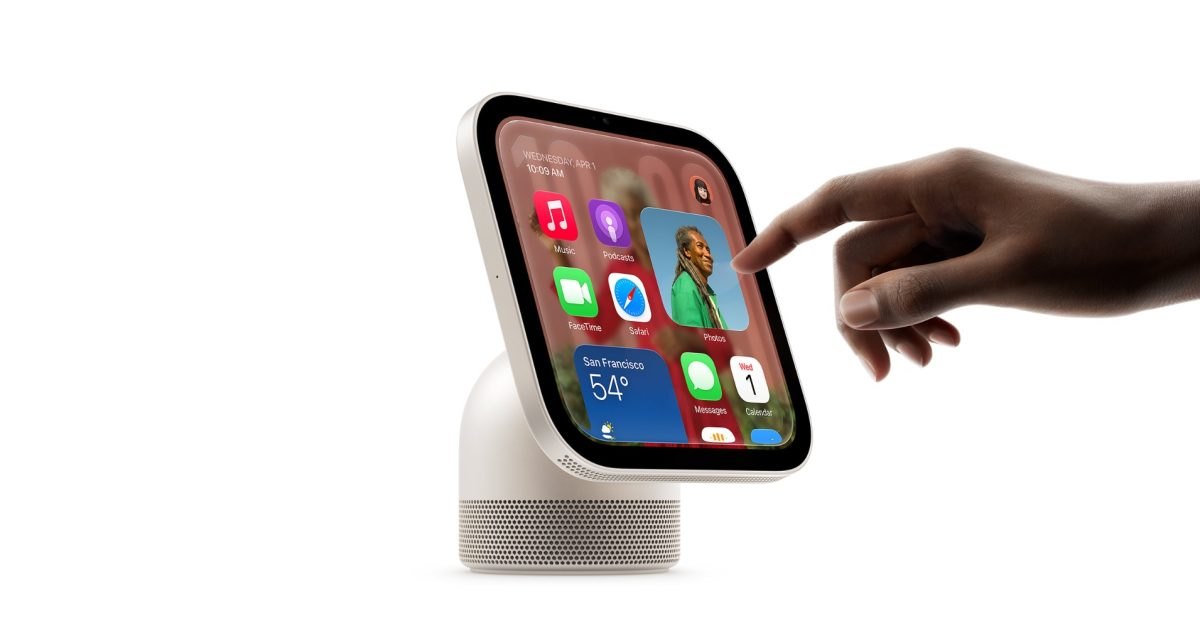
Apple expanded its official customer support infrastructure with a comprehensive library of documentation coinciding with the hardware launch of the Apple HomeView smart display. According to 9to5Mac's report, the company accelerated documentation releases over a two-day window to provide owners with detailed operational instructions and troubleshooting workflows. The newly published materials encompass everything from facial recognition management and multi-user configurations to dedicated hardware servicing procedures.
This overview details the full catalog of newly published technical documentation, service guides, and operational workflows for early adopters, system administrators, and smart home owners deploying the device. Readers will find exact procedures for resolving identity recognition failures, managing account profiles, executing factory repairs, and sourcing compatible power hardware. By centralizing these practical workflows, this reference provides an end-to-end breakdown of how Apple expects customers to maintain and service their smart home display.
01Setup guides and Home Screen personalization
The official Apple HomeView User Guide serves as the foundational manual for establishing initial device connectivity and configuring the central interface. Apple outlines step-by-step procedures to help users initialize the hardware, navigate system settings, and customize the Home Screen layout to surface preferred controls. These instructions ensure that new owners can complete initial onboarding before integrating the display into their wider connected home network.
Beyond basic interface navigation, the manual details operational controls for managing connected smart home accessories directly from the central display panel. The guide also establishes how users interact with Siri AI to command connected household equipment through voice inputs and automated prompts. Owners who experience initial setup barriers are directed to a dedicated troubleshooting document specifically titled If you can’t set up Apple HomeView.
Apple addresses configuration errors and missing preferences that may arise immediately following system initialization through focused troubleshooting materials. The companion article If settings or data are missing on Apple HomeView provides systematic instructions to restore customized configurations and cached application states. These documents collectively ensure that display owners can successfully stabilize their personalized preferences and preserve established device arrangements.
02Facial recognition and identity verification prompts
Facial recognition capabilities represent a primary operational component of the device, prompting Apple to publish focused instructions for visual authentication. A primary troubleshooting guide titled If Apple HomeView doesn’t recognize you targets biometric scan failures and positioning issues during daily room interactions. The documentation guides owners through camera alignment checks and environmental lighting considerations to restore reliable facial detection across different household conditions.
The company also addresses system security measures that activate when the sensor array requires manual confirmation before granting account access. When the onboard software detects authentication ambiguity, it triggers an on-screen prompt detailed in the document If “Confirm Your Identity” appears on Apple HomeView. This process protects private user records by enforcing secondary confirmation steps whenever primary visual sensors cannot definitively authenticate the individual standing in view.
Apple pairs these biometric instructions with dedicated guidance covering general system alerts and warning indicators across the display glass. When visual detection or underlying hardware services encounter operational conflicts, the guide If a warning symbol appears on Apple HomeView explains each alert symbol. Owners can use these visual explanations to distinguish routine authentication requests from more urgent internal hardware and software faults.
Advertisement
Tech Pulse Daily
Get tomorrow's pulse first
Join engineers who read Tech Pulse before stand-up. Free, weekday mornings.
03Multi-user profiles and shared content access
Household environments often involve multiple family members, requiring distinct account permissions and content partitioning across a single shared display. Apple addresses these household demands within the user guide by detailing specific procedures for configuring and managing individual user profiles. Household administrators can assign dedicated access rights and personalized interface preferences so each family member retains individual settings upon approaching the screen.
When administrators encounter onboarding friction while attempting to link additional family members, Apple provides a specific troubleshooting document. The guide titled If you can’t add others to Apple HomeView addresses account permission conflicts and invitation delivery failures within shared household setups. Following these steps allows household managers to audit network settings and user credentials before repeating the profile addition process.
Complementing profile creation, Apple issued targeted documentation covering media libraries and application access permissions across connected family accounts. The article If you can’t access your content on Apple HomeView assists users whose media, documents, or personal data fail to load under their profile. Additionally, the guide If Apple HomeView shows an “App Unavailable” message explains software restrictions and regional constraints preventing certain tools from running.
04Hardware troubleshooting and power adapter requirements
Hardware reliability and electrical requirements form another major focus of the newly published customer support collection. Apple published an essential technical specification document titled Power adapters for Apple HomeView to clarify voltage standards and official charging brick compatibility. Utilizing properly rated power hardware prevents erratic behavior, unexpected reboots, and brownout conditions when the display operates at peak brightness.
For units that fail to boot or freeze during daily operation, Apple provides immediate diagnostic steps in a dedicated guide. The article If Apple HomeView won’t turn on or is unresponsive outlines power cycling routines, cable seating checks, and hardware reset protocols. These preliminary troubleshooting steps help owners verify whether an unresponsive display stems from a localized power delivery fault or deeper system corruption.
When initial troubleshooting fails to restore normal operation, customer support technicians require unique device identifiers to process warranty claims. Apple published the guide Find the serial number for your Apple HomeView to show users where to locate the serial string on physical hardware and packaging. Having this identifier readily available allows support representatives to look up purchase records and confirm warranty coverage without delay.
05Out-of-warranty service and express replacement options
Apple initiated its customer support rollout shortly after announcing the device by posting dedicated service pages outlining formal repair pathways. This documentation details estimated out-of-warranty repair costs, establishing transparent pricing expectations for accidental damage and component failures occurring outside standard coverage. By posting these fee estimates ahead of shipping, Apple clarified hardware repair costs before customers encountered hardware mishaps.
For customers requiring physical repairs, Apple published the logistical walkthrough titled Send your Apple HomeView to Apple for service. This guide describes packaging guidelines, shipping procedures, and diagnostic check-in stages when sending a malfunctioning unit to a regional service depot. Following these preparation steps protects the glass display from physical transit damage and ensures the repair facility logs the device accurately.
Customers with expedited repair coverage can review the specific instructions provided in Prepare your Apple HomeView for Express Replacement Service. This document explains how Apple ships a replacement unit directly to the user before the defective hardware is returned to the company. Apple is expected to expand this technical library with further specialized documentation in the coming days and weeks as customer adoption expands.
Apple details HomeView facial recognition FAQ
What does the Apple HomeView User Guide cover?
The user guide covers setting up the device, customizing the Home Screen, using Siri AI, managing user profiles, and controlling smart home accessories.
How can owners troubleshoot Apple HomeView facial recognition problems?
Apple published dedicated support documents titled If Apple HomeView doesn’t recognize you and If “Confirm Your Identity” appears on Apple HomeView to resolve biometric scan and authentication issues.
What repair and replacement options are available for Apple HomeView?
Apple offers support guides detailing estimated out-of-warranty repair costs, mail-in service procedures, and instructions to prepare the hardware for Express Replacement Service.
What should users do if Apple HomeView will not turn on?
Users can follow Apple's troubleshooting guide titled If Apple HomeView won’t turn on or is unresponsive and review the official power adapter specifications.
Sources

Author
Dillip Chowdary
Writes Tech Bytes coverage of AI, engineering, and the tools that actually ship. Editor of Tech Pulse Daily.
Related on Tech Bytes
Advertisement