Got an iPhone Duo? These 9 settings make it easier to use
Apple's sold-out iPhone Duo drops Face ID for side-rail Touch ID, making system tweaks to volume orientation and custom shortcuts essential for daily handling.
By Dillip Chowdary • Nov 14, 2026 • Source: TechCrunch

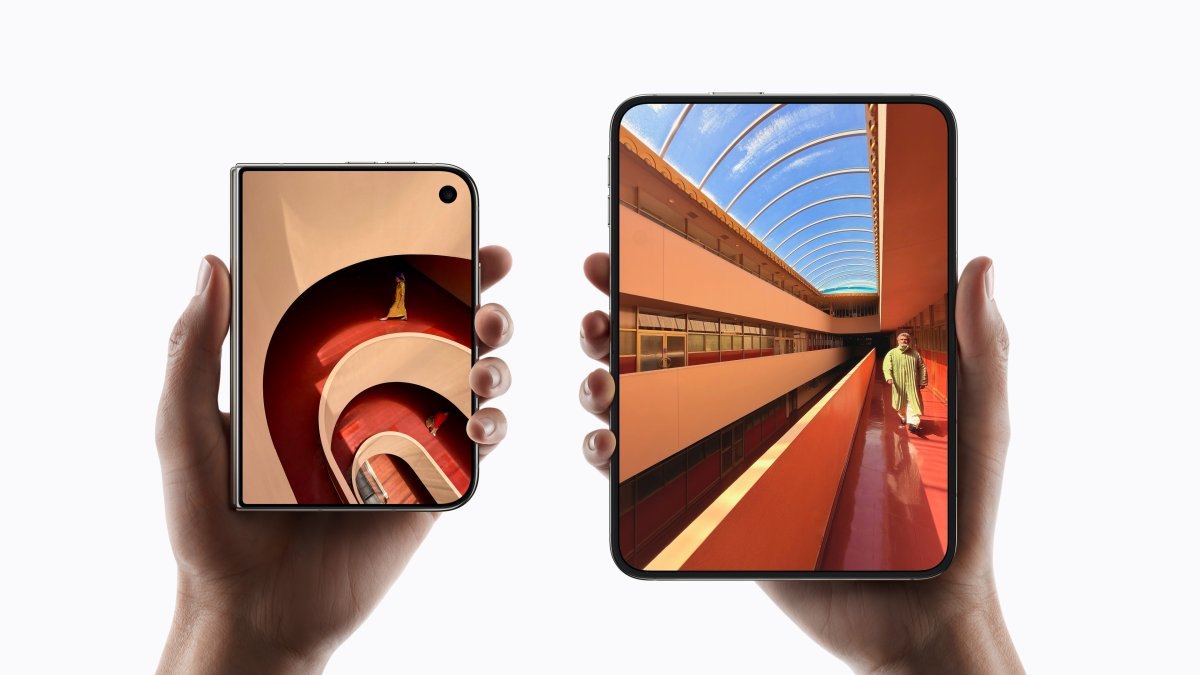
Apple launched its first foldable smartphone, the iPhone Duo, meeting demand so intense that retail inventory remains completely depleted worldwide. According to TechCrunch's report, the hardware introduces an unconventional folding format that omits standard Face ID sensors in favor of physical biometric hardware. Because the dual-screen configuration changes how users manipulate the device throughout the day, the out-of-the-box system configuration requires several key software refinements.
This guide outlines nine operational adjustments designed for new iPhone Duo owners seeking smoother daily handling. It covers hardware button behavior, biometric workarounds, accessibility gestures, layout customizers, and automation shortcuts across iOS. By adjusting these default configurations, owners can eliminate physical friction when authenticating apps, taking screenshots, operating the wide displays with one hand, and snapping photos.
01Multi-angle fingerprint setup on both hands
The absence of TrueDepth Face ID hardware forces owners to rely exclusively on a physical Touch ID sensor embedded in the side chassis. Because users hold, pivot, unfold, and flip the device across vertical and horizontal planes, a standard two-finger enrollment proves insufficient for daily unlocking. Registering multiple fingers across both hands ensures instant authentication regardless of how the device is gripped.
Owners should spend time holding the hardware in natural reading and folded positions before registering contact points. Navigating to the Touch ID and Passcode menu allows the addition of several distinct fingerprint profiles covering primary thumbs and index fingers. Capturing angled edges during this one-time enrollment process prevents repeated failed login prompts when picking up the phone off-axis.
Enrolling secondary fingers also simplifies authenticating mobile banking applications and Apple Pay transactions in retail stores. Without Face ID scanning your face automatically, reaching the side button quickly becomes the primary physical interaction. Taking a few minutes to train extra contact angles eliminates the awkward hand gymnastics previously required to access the home screen.
02Apple Watch authentication and sensor open
Owners who wear a companion Apple Watch can bypass the physical side sensor entirely while navigating daily routines. When enabled within system settings, a passcode-protected Apple Watch worn in close proximity unlocks the phone automatically upon waking the display. This background handshake removes the need to place fingers directly on the chassis button when wearing gloves or carrying items.
A second biometric adjustment involves the Rest Finger to Open toggle located inside accessibility preferences. By default, iOS requires a firm physical depression of the power button to disengage the lock mechanism. Enabling this setting lets the capacitive surface read registered prints upon light skin contact, accelerating transitions into active workspaces without requiring mechanical force.
Some users prefer retaining the tactile click to prevent unintentional waking inside pockets, but resting contact offers superior speed. Pairing light-touch sensor unlocks with watch authentication establishes a seamless dual-layer access workflow. These complementary settings dramatically reduce the friction of adjusting from automated facial recognition back to touch-based authentication.
Advertisement
Tech Pulse Daily
Get tomorrow's pulse first
Join engineers who read Tech Pulse before stand-up. Free, weekday mornings.
03Dynamic volume orientation and back tap
Default operating system parameters lock the volume keys into fixed hardware assignments, meaning the upper button always increases sound output. Unfolding or rotating the screen flips these physical controls upside down, confusing muscle memory during video playback or voice calls. Toggling off Fixed Position Volume Controls in sound preferences lets the audio rocker dynamically mirror current display orientation.
Taking screen captures presents another ergonomic challenge due to the requirement of pressing opposing side buttons simultaneously. Users operating the wide device one-handed often struggle to coordinate simultaneous key depressions without dropping the chassis. Configuring the built-in Back Tap accessibility tool provides a reliable one-handed shortcut that bypasses physical button combinations entirely.
Within touch settings, owners can map a double or triple tap on the rear glass directly to screen capture. Triple tapping generally prevents accidental triggers when setting the hardware down on hard tables. Once configured, a quick index finger tap on the exterior casing records screenshots instantly without altering screen rotation or hand position.
04Passport width reachability and fold automation
Unlike elongated rectangular smartphones, the iPhone Duo features an exceptionally wide aspect ratio reminiscent of a pocket passport. Standard iOS Reachability usually shifts upper interface elements downward, but horizontal reach represents the actual ergonomic obstacle on this broader canvas. The adapted Reachability feature instead pulls far lateral edges inward with a simple swipe gesture across the display border.
While horizontal reach assistance is activated by default, owners who trigger the screen shift unintentionally can disable it entirely. Those who retain the feature can comfortably navigate dense application layouts and keyboards using one thumb. Complementing display scaling with automation tools further tailors the wider hardware to rapid open-and-shut usage patterns.
Because iOS lacks a native toggle to secure the display upon closure, users can construct an automated workflow inside Shortcuts. Selecting the Opened or Closed display condition triggers a Lock Screen action whenever the dual panels snap shut. This custom sequence ensures immediate device privacy without requiring manual side button presses after concluding tasks.
05On-screen camera tools and capture flash
The updated Camera interface lets photographers reconfigure on-screen control positions to match personal shooting preferences. Tapping the six-dot utility menu inside the viewfinder reveals a customization sheet with options to expose specific tools above the image frame. Users can pin Live Photos, Night Mode, and flash switches directly to top banners for rapid adjustments.
Dragging preferred photographic controls into customized sequences keeps essential utilities within thumb reach in both landscape and folded orientations. This streamlined arrangement minimizes hunting through multi-layered menus while framing fast-moving subjects. It also complements specialized capture workflows designed around the folding chassis itself when balancing the phone on flat surfaces.
The Smart Take feature allows autonomous group and solo portraits by detecting subject stillness without setting manual timers. However, the hardware emits an assertive strobe blink to indicate capture completion, which proves disruptive in quiet social environments. Accessing capture preferences allows photographers to deactivate this confirmation strobe while retaining automated shutter detection.
Got an iPhone Duo? These 9 settings make it FAQ
Why does the iPhone Duo lack Face ID?
The iPhone Duo omits Face ID hardware in favor of a capacitive Touch ID sensor built into the side button, requiring users to authenticate using physical fingerprints.
How does Reachability function on the iPhone Duo?
Because the device resembles a wide passport, Reachability shifts the left or right edges of the screen inward with a side swipe rather than simply shifting content downward.
Can the iPhone Duo automatically lock when snapped closed?
While there is no native setting, users can build an automation in the Shortcuts app that triggers the Lock Screen command whenever display status changes to closed.
What does disabling Fixed Position Volume Controls do?
Disabling the fixed setting allows the volume buttons to rotate their functions dynamically with the phone's orientation, keeping volume increase on the top or right.
Sources

Author
Dillip Chowdary
Writes Tech Bytes coverage of AI, engineering, and the tools that actually ship. Editor of Tech Pulse Daily.
Related on Tech Bytes
Advertisement