How to buy and install a Travel eSIM on WhatsApp for Android
WhatsApp announced Travel eSIM for Android and iOS, still under development, so users can buy and install a trip data plan from partners including Jio.
By Dillip Chowdary • Nov 28, 2026 • Source: WABetaInfo
At a glance
- Product
- Travel eSIM
- Status
- Under development
- Date
- November 26, 2026
- Availability
- Select countries on Android and iOS
- Partners
- Jio, Smart Axiata, Smart Communications, Verizon, 1Global
- Prices
- Indicative only, not the final plans
The source has a clear how-to order. I'll turn that into five fact-based sections and check the length against the 800–1,000 word range.WhatsApp announced a Travel eSIM feature that lets users buy and install a data plan from the app and get online when they land. The feature is under development and is not available yet, though the in-app path is already laid out from the first screen through a finished install. WABetaInfo's report shows that complete Android experience, covering destination choice, plan selection, purchase, and installation. WhatsApp will release the Travel eSIM feature in select countries on Android and iOS.
This piece is for Android users who want mobile data on a trip and still want to message friends and family on their current WhatsApp number. It follows the shown screens: the Travel eSIM entry in Account settings, the choice between unlimited and fixed data, the summary after Buy plan, and the point when the eSIM should be turned on. The setup does not take more than a minute, and it is aimed at any destination the user plans to visit.
01Partner carriers for trip data
WhatsApp is working with several partners to offer Travel eSIM data plans in different countries. These include Jio, Smart Axiata, Smart Communications, Verizon, and 1Global. With those plans, users can buy data coverage for a trip from inside the app.
Users buy and install the Travel eSIM without leaving the app, and without visiting a carrier store or a third-party website. They use that data to connect with their friends and family when they land. The coverage applies to any destination they plan to visit.
02Account settings Travel eSIM screen
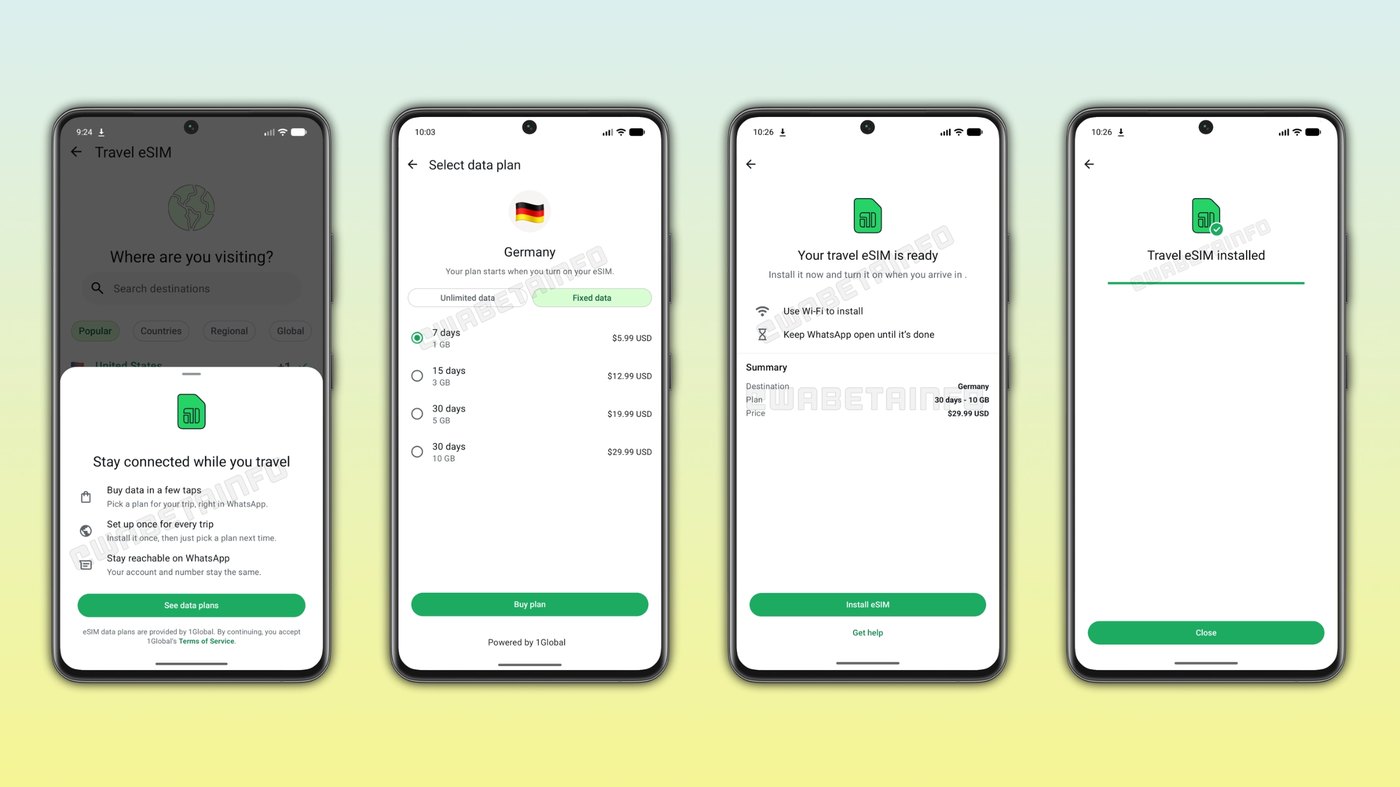
Users will reach the Travel eSIM section from Account settings. There they open the Travel eSIM screen and enter where they are visiting. They can type that destination into the search bar, or they can filter the list by Popular, Countries, Regional, and Global.
WhatsApp says users can buy a Travel eSIM in a few taps and pick a plan for the trip. They install the Travel eSIM once and then pick a plan for every destination. WhatsApp does not change the user's account or phone number after the Travel eSIM is installed.
- Open Account settings The Travel eSIM section is inside Account settings.
- Open the Travel eSIM screen Enter the destination for the trip.
- Search or filter Type the place in the search bar, or filter by Popular, Countries, Regional, or Global.
- Install once Pick a plan for this destination, and use the same installed eSIM for later destinations.
03Unlimited data and fixed plans
After users select a destination, they see which data plans are available in that country. They choose between unlimited data and fixed data, and they can switch between these two plans to find the option they prefer. Fixed data offers different durations and data plans, so users can choose the one that covers their trip.
Advertisement
Tech Pulse Daily
Get tomorrow's pulse first
Join engineers who read Tech Pulse before stand-up. Free, weekday mornings.
The unlimited plan offers data without any cap for the duration of the plan. Once users find the right plan, they tap Buy plan to continue. The button moves them from the plan list to a summary of the selection they just made.
| Plan | Allowance | Duration |
|---|---|---|
| Fixed data | Different data plans | Different durations, chosen to cover the trip |
| Unlimited data | Data without any cap | The duration of the plan |
Note: Prices visible in the screenshot are indicative, since they do not represent the final plans yet.
04Plan summary and eSIM install
After tapping Buy plan, WhatsApp shows a summary of the selected plan. The summary includes the destination, the plan details, and the total price. WhatsApp suggests using Wi-Fi to complete the installation, and it asks users to keep the app open.
Users tap Install eSIM to start the installation, and it takes a few seconds. If they need help, they tap the Get help link at the bottom of the screen. A green checkmark then tells them that the app successfully installed the Travel eSIM.
Users can see the eSIM on the device, but they do not have to turn it on immediately. WhatsApp recommends that users activate the eSIM when they arrive at their destination, so they can start the plan at the right time. They can open WhatsApp and use it as they normally would, with the same phone number.
- Read the summary Confirm the destination, the plan details, and the total price.
- Use Wi-Fi WhatsApp suggests Wi-Fi for the install and asks users to keep the app open.
- Tap Install eSIM The install takes a few seconds, and Get help sits at the bottom of the screen.
- Wait for the checkmark A green checkmark means the Travel eSIM installed. WhatsApp recommends activating it on arrival.
05Select countries on Android and iOS
On November 26, 2026, WhatsApp said that it would begin rolling this feature out in select countries soon. WhatsApp has not shared the full list of countries where Travel eSIM will be available at launch. The screens described here are a look at that experience while the feature is still under development.
WhatsApp will make the feature available on iOS as well as Android. Travelers can then get data coverage for a trip on an iPhone or an Android device. The select-country rollout includes both platforms, and the feature is not available yet.
Frequently asked questions
How do you buy a Travel eSIM in WhatsApp on Android?
Open Account settings, open the Travel eSIM screen, and enter a destination in the search bar or filter by Popular, Countries, Regional, or Global. Choose unlimited data or fixed data, tap Buy plan, review the destination, plan details, and total price, then tap Install eSIM. The setup takes no more than a minute, but the feature is not available yet.
Is WhatsApp Travel eSIM available now?
No, Travel eSIM is under development. On November 26, 2026, WhatsApp said it would begin rolling the feature out in select countries soon, on Android and iOS. WhatsApp has not shared the full list of launch countries.
Which partners will sell WhatsApp Travel eSIM plans?
WhatsApp is working with Jio, Smart Axiata, Smart Communications, Verizon, and 1Global to offer data plans in different countries. Users buy those plans inside WhatsApp, without a carrier store or a third-party website.
Does a WhatsApp Travel eSIM change your phone number?
No, WhatsApp does not change the account or phone number after the Travel eSIM is installed. Users can open WhatsApp and use it as they normally would with the same phone number. WhatsApp recommends activating the eSIM when they arrive at the destination.
What is the difference between unlimited and fixed Travel eSIM data?
Fixed data offers different durations and data plans so users can cover the length of a trip. The unlimited plan offers data without any cap for the duration of the plan, and users can switch between the two. Screenshot prices are indicative and are not the final plans.
Sources

Author
Dillip Chowdary
Writes Tech Bytes coverage of AI, engineering, and the tools that actually ship. Editor of Tech Pulse Daily.
Related on Tech Bytes
Advertisement