WebGL Flight Simulator with seed generated terrain
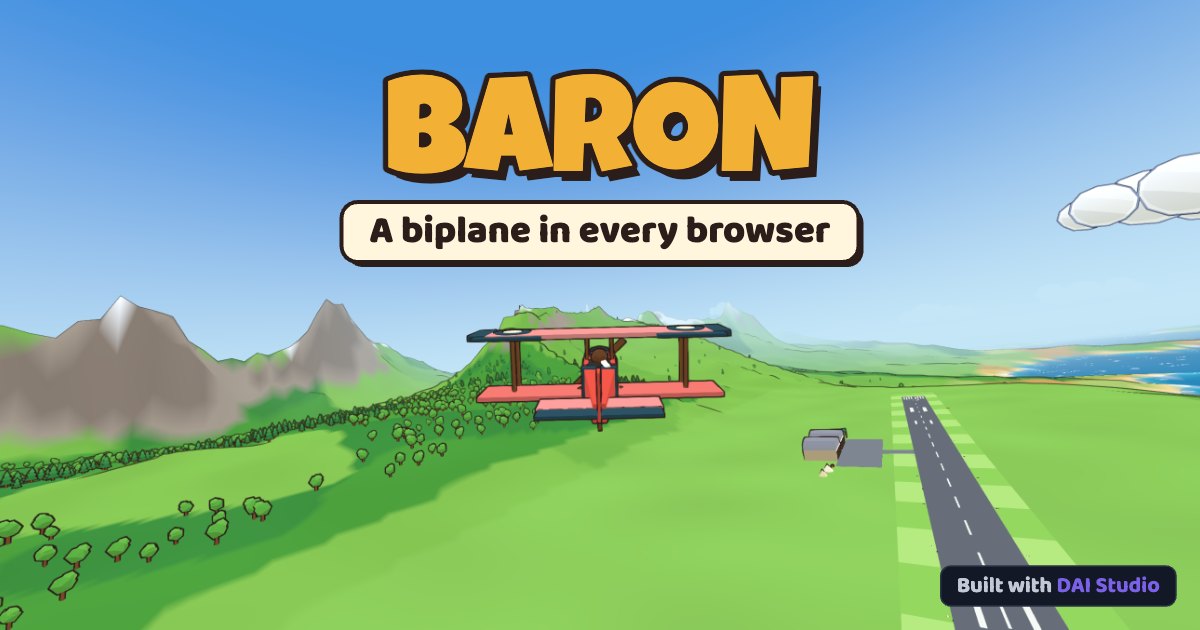
DAI Studio launched Baron, an in-browser WebGL 2 flight simulator featuring procedural terrain, three flight physics modes, and cross-country navigation.
By Dillip Chowdary • Nov 15, 2026 • Source: baron.by.dai.studio
At a glance
- Product
- Baron
- Developer
- DAI Studio
- Platform
- WebGL 2 web browsers
- Flight modes
- Arcade, Normal, Expert
- Missions
- Free flight, Cross-country
- App type
- Progressive Web App
DAI Studio launched Baron, an in-browser flight simulation project that renders procedural terrain and vintage aircraft mechanics directly across modern web browsers. According to baron.by.dai.studio's report, the flight software runs through client-side WebGL 2 without requiring external plugins or desktop installations. The platform challenges players to complete takeoffs, survey procedurally generated environments, and safely land their biplanes in one piece.
This breakdown examines the complete simulation setup, including terrain generation mechanics, control layouts across desktop and mobile devices, and core graphics configurations. Aviation enthusiasts, casual flight sim fans, and web graphics developers can use this guide to navigate aircraft handling profiles. Readers will discover how to configure sorties, inspect hangars, and maintain stable frame rates across supported hardware.
01Procedural terrain generation and flight missions
Pilots start flights by selecting between two primary mission parameters, consisting of free flight exploration or structured cross-country navigation routes. In cross-country sorties, the interface provides destination selectors alongside guided flight plan tracking between remote airfields. Each unique flight session builds a procedural landscape using an adjustable world seed mechanism represented by a dice roll.
Navigational waypoints simplify long-distance transit across seeded terrain coordinates, guiding pilots from initial departure to final arrival.
- Launch sortie take off from the designated runway at Home Field
- Follow white arrows align aircraft heading toward waypoint beacons
- Execute touchdown touch down along the destination landing field
02Three distinct flight handling presets
DAI Studio provides three distinct aerodynamic simulation tiers designed to accommodate varying player experience levels and input precision constraints. Beginners can engage arcade physics for forgiving handling, while advanced pilots can transition to normal or expert aerodynamic envelopes. The hangar viewing bay permits manual aircraft inspection, allowing pilots to rotate biplane models across camera angles.
Handling settings determine how biplanes respond to aerodynamic stall speeds, control deflections, and adverse yaw conditions.
| Setting | Physics Tier | Primary Operational Focus |
|---|---|---|
| Arcade | Assisted | Automated ground steering and forgiving control tolerances |
| Normal | Standard | Realistic lift curves and balanced aerodynamic drag rates |
| Expert | Unassisted | Rigorous aerodynamic stalls requiring precise rudder management |
Advertisement
Tech Pulse Daily
Get tomorrow's pulse first
Join engineers who read Tech Pulse before stand-up. Free, weekday mornings.
03Keyboard gamepad and mobile cockpit controls
Desktop pilots utilize standard keyboard mappings where W and S or arrow keys govern elevator pitch, while A and D control roll. Holding S pulls the flight stick backward to climb, while Q and E actuate the rudder. Engine throttle scales via Shift and Ctrl, or by pressing number keys from 1 through 9, with 0 engaging full throttle.
Alternative input configurations allow desktop aviators to activate a virtual mouse stick by pressing M, or connect hardware gamepads. When using a gamepad, the left analog stick controls primary flight surfaces while the right analog stick manages rudder along the X-axis and throttle along the Y-axis. Mobile users steer by dragging on the left screen half, while a vertical slider manages throttle.
04Browser installation and mobile landscape orientation
Smartphone and tablet users can package the web simulator into an independent progressive web application directly from their mobile browser interface.
- Open share menu tap the native Share icon within the mobile browser interface
- Select home screen choose the Add to Home Screen option from the system sheet
- Launch progressive app open the installed simulator shortcut to begin flying
Note: Mobile flight requires landscape screen orientation, causing the software to automatically pause and prompt users to rotate their devices whenever held vertically. Aviators can pause the flight to enable accelerometer tilt steering, re-center tilt axes, or toggle pitch inversion across handheld sensors.
05WebGL graphics pipeline and context recovery
Baron renders all visual assets through client-side WebGL 2, requiring modern hardware acceleration pipelines to maintain smooth real-time flight performance. Visual detail levels can be adjusted between Auto, Low, Med, and High presets to match underlying device rendering capabilities. These graphics presets modify terrain detail density and rendering fidelity to maintain consistent frame delivery during low-altitude flights.
The simulation engine runs across updated versions of Google Chrome, Microsoft Edge, Mozilla Firefox, and Apple Safari with hardware acceleration enabled. Systems lacking functional WebGL 2 drivers will display a compatibility notification prompting users to update software or activate graphics hardware acceleration. If the browser resets the active graphics context, the simulator displays a recovery alert while restoring visual assets automatically.
Frequently asked questions
What browsers support Baron flight simulator?
Baron requires WebGL 2 support with hardware acceleration enabled on current versions of Chrome, Edge, Firefox, or Safari. If your browser lacks WebGL 2 drivers, the simulator prompts you to update or enable acceleration.
How do you steer and control the biplane on mobile devices?
On mobile devices, dragging on the left screen half steers the plane, while pulling down pitches the aircraft up to climb. A vertical lever on the right edge controls throttle, double-tapping sets idle, and tilting the phone can steer when enabled.
What flight modes and missions are available in Baron?
Baron offers Free flight and Cross-country mission formats powered by randomized procedural world seeds. Players can configure flight physics across Arcade, Normal, and Expert modes.
Can Baron be installed as a mobile application?
Yes, mobile players can install Baron as a progressive web app by tapping Share in their browser and selecting Add to Home Screen. The simulator requires devices to be rotated into landscape orientation to fly.
Sources

Author
Dillip Chowdary
Writes Tech Bytes coverage of AI, engineering, and the tools that actually ship. Editor of Tech Pulse Daily.
Related on Tech Bytes
Advertisement